User manual

From box to control, step by step.

Set up a new device, scan your network and run your home from VarThings. Follow the roadmap below or jump to any step.

Prepare

Before you start

Get these ready (5 minutes)

  1. A phone with iOS or Android and Bluetooth turned on.
  2. Your home Wi-Fi name and password. VarAudio connects to a 2.4 GHz network.
  3. VarAudio plugged in over USB-C, with a power adapter or a computer port.
  4. Your phone on the same Wi-Fi network you want VarAudio to join.
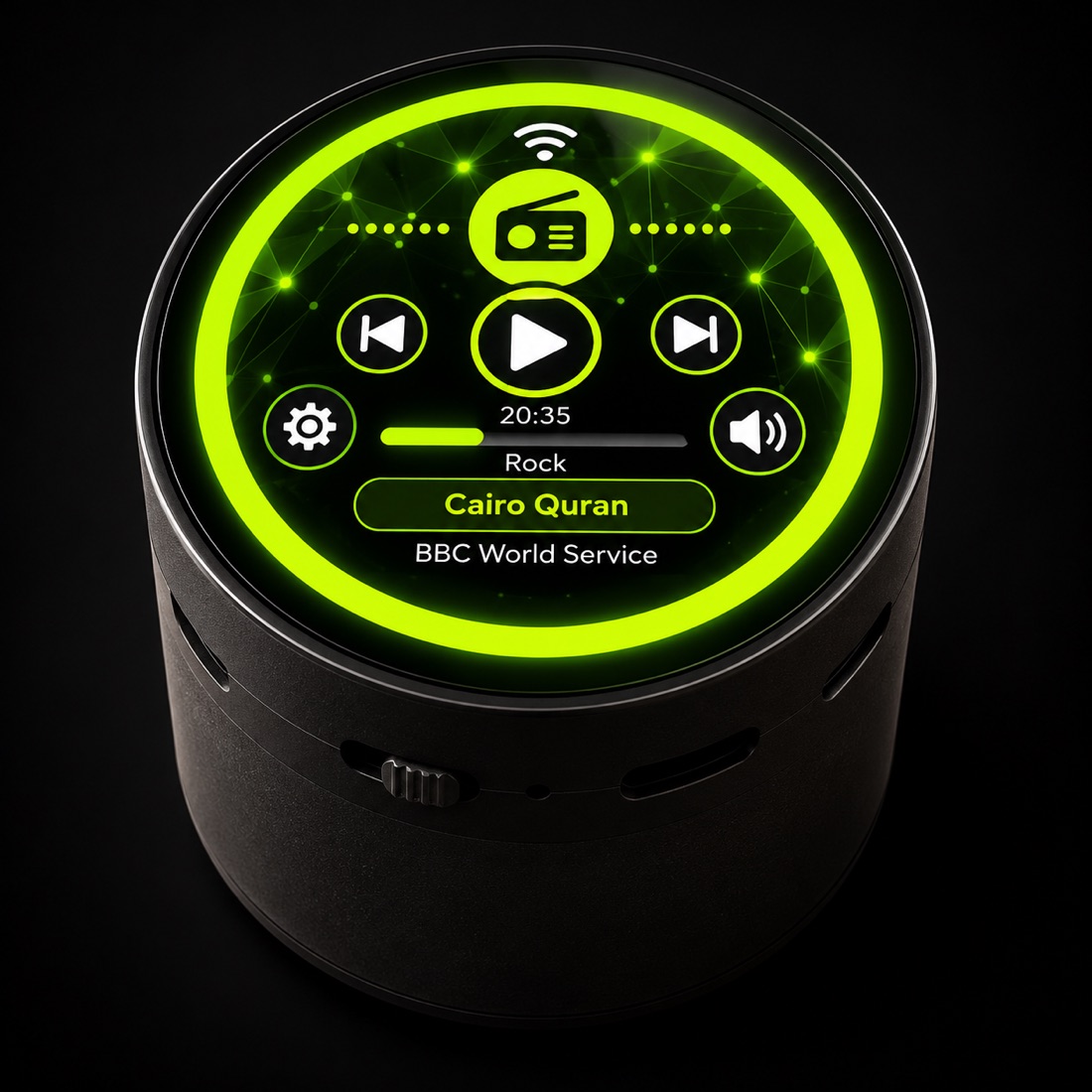
VarAudio device with its glowing screen

Install

Install VarThings and sign in

Download the free app, then sign in or create an account

  1. Get VarThings from the App Store or Google Play.
  2. Open the app. The splash screen says Connecting… while it starts.
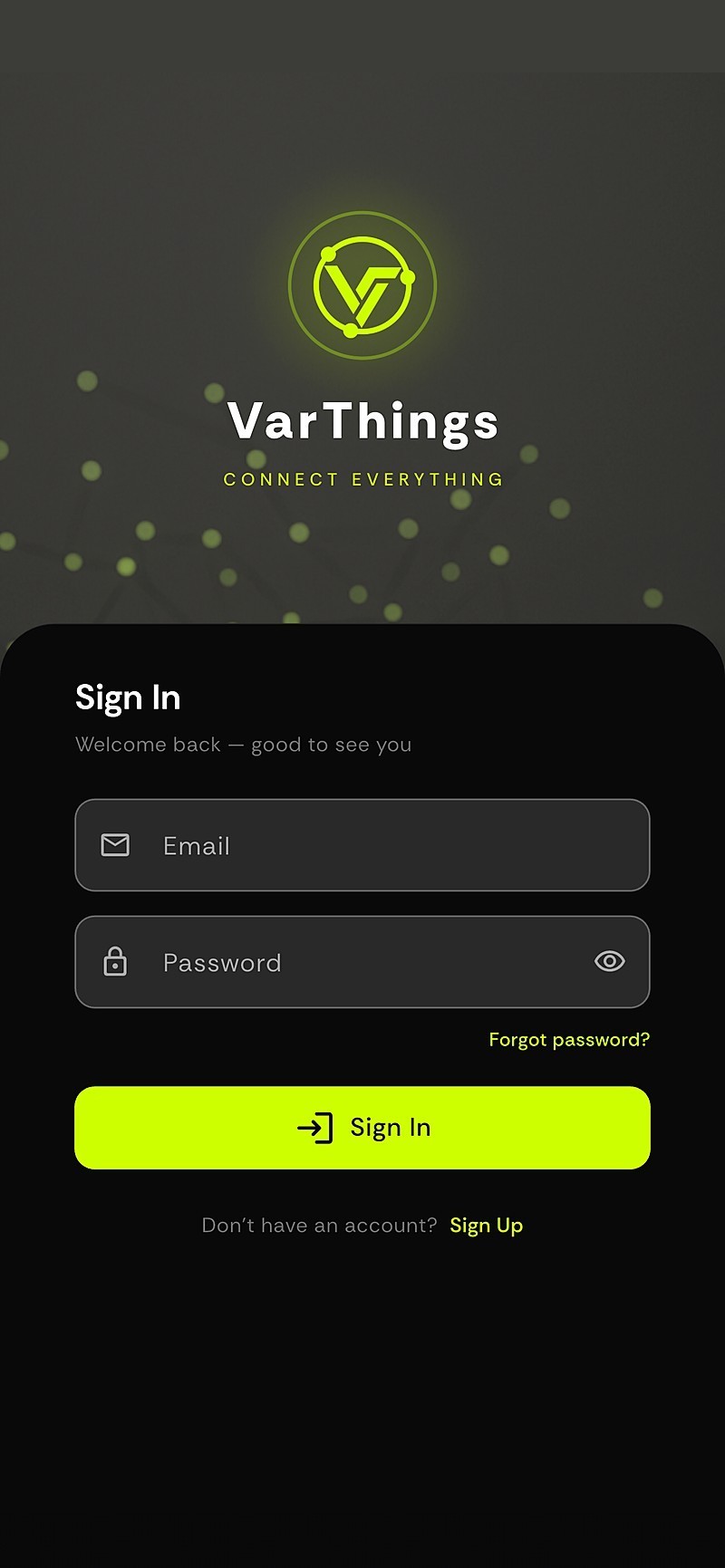
  3. Enter your email and password and tap Sign In. New here? Tap Sign Up.
  4. Forgot your password? Use Forgot password? and follow the email.
VarThings sign in screen

Power on

Power on VarAudio

Watch for the VarAudio logo and “Loading, please wait…”

  1. Plug in the USB-C cable. The screen lights up with the VarAudio logo.
  2. A new device has no Wi-Fi saved, so it waits for setup over Bluetooth.
  3. Keep it within a few metres of your phone during setup.
VarAudio boot screen: logo, version and Loading, please wait

Provision

Add the device and give it Wi-Fi

The app finds VarAudio over Bluetooth and sends it your network

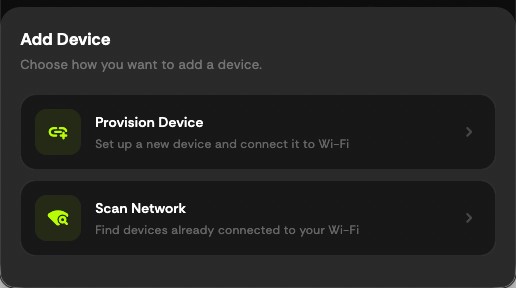
  1. Open the Devices tab and tap + New, then choose Provision Device (“Set up a new device and connect it to Wi-Fi”).
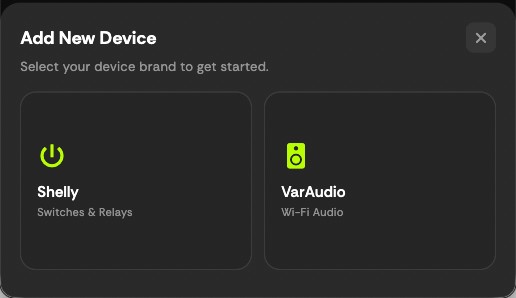
  2. Select the VarAudio brand. Allow Bluetooth (and Location on Android) when asked.
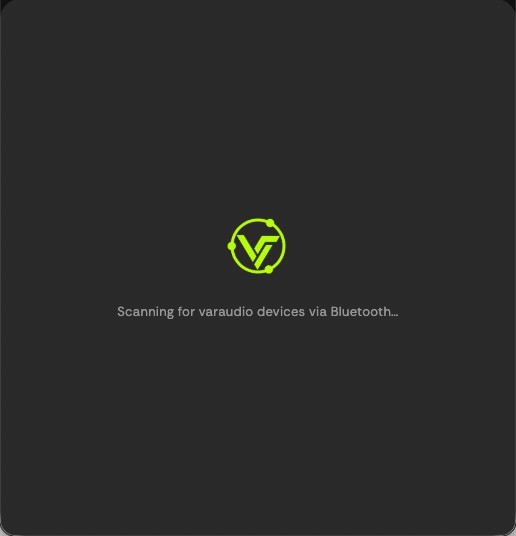
  3. The app shows Scanning for varaudio devices via Bluetooth… and lists VarAudio-XXXXXX. Pick your device.
  4. Type your Wi-Fi Network Name and Wi-Fi Password, then tap Connect Device.
  5. Wait while the device joins Wi-Fi (up to about 15 seconds). The app then finds it on your network.
  6. When it has joined, the app asks which room (area) to put the device in. Pick one and you are done: VarAudio is already added and ready to control, so you can skip the scan step.
  7. Provisioning uses Bluetooth, so do it from the iPhone or Android app.

Optional

Scan your network (optional)

Only needed for devices that are already on your Wi-Fi

  1. Skip this step if you just provisioned the device in step 4. It is added to its room automatically.
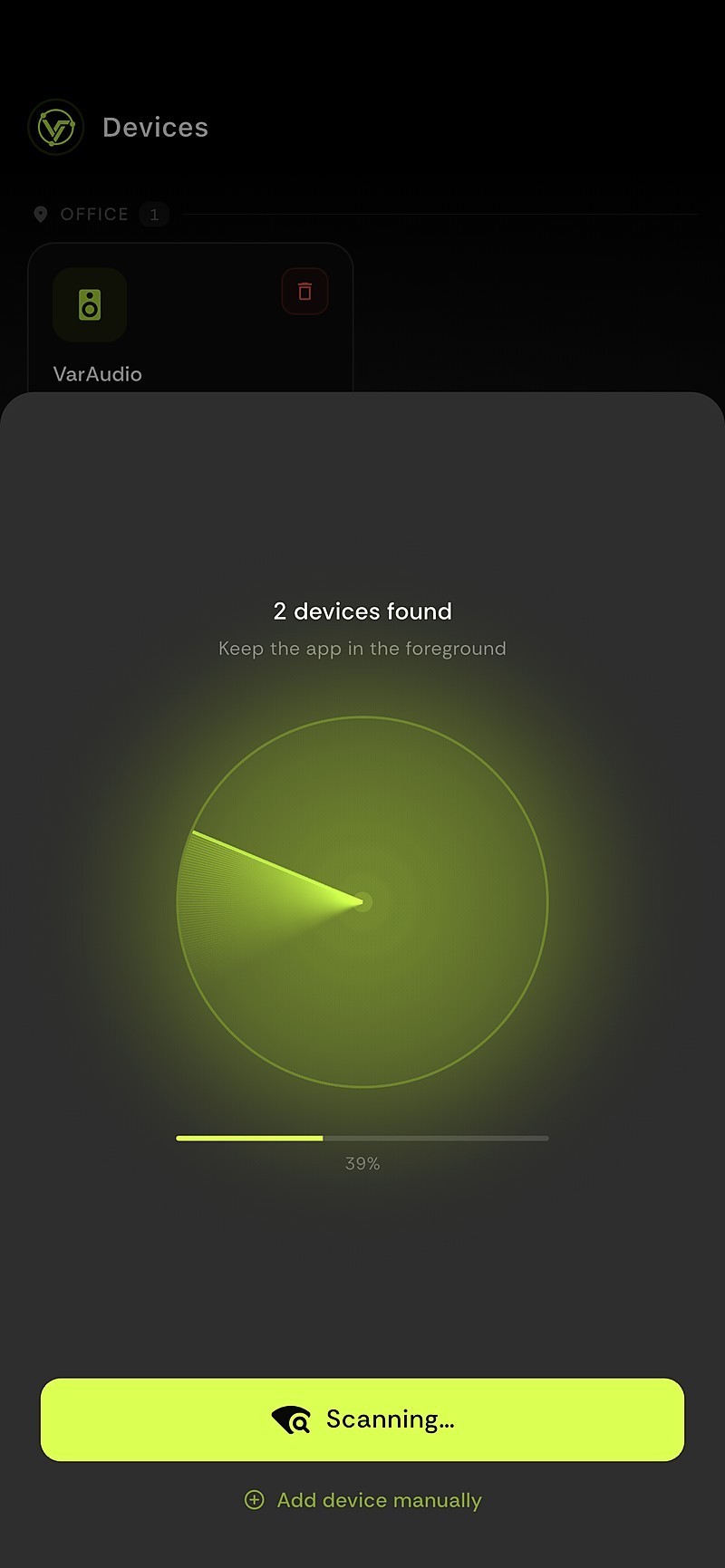
  2. In Devices, tap + New, choose Scan Network (“Find devices already connected to your Wi-Fi”) and tap Start Scanning.
  3. Keep the app in the foreground. A radar shows progress and “devices found”.
  4. Tap a device to add it. Nothing found? Use Add device manually and type its IP address.
Scanning for devices

Control

Control it from Home

Your player card, volume and brightness in one place

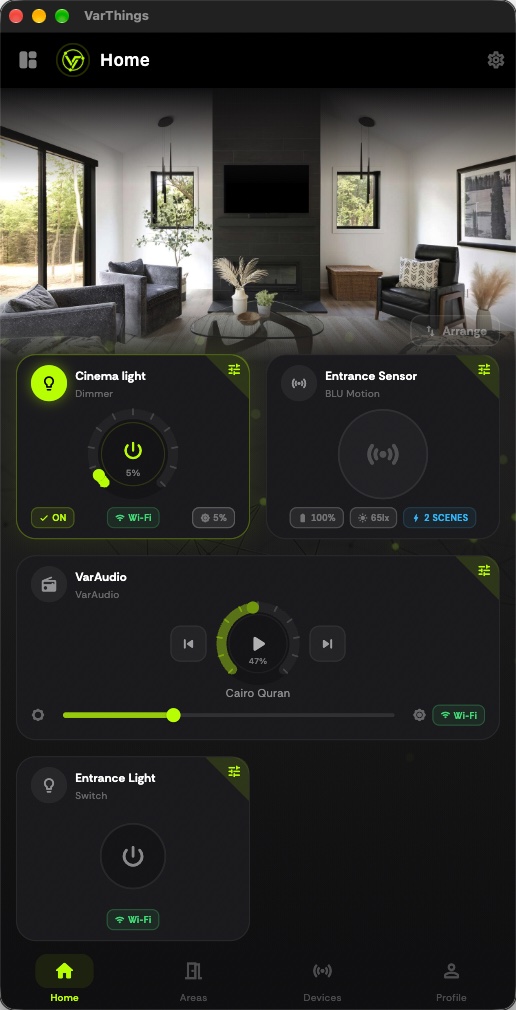
  1. Open Home. VarAudio shows as a card with the current station.
  2. Use previous, stop/play and next. Left slider is brightness, right slider is volume.
  3. Pick the room at the bottom to see the devices in it.
VarThings home with the VarAudio player card

Customize

Stations, Azan and settings

Make VarAudio yours

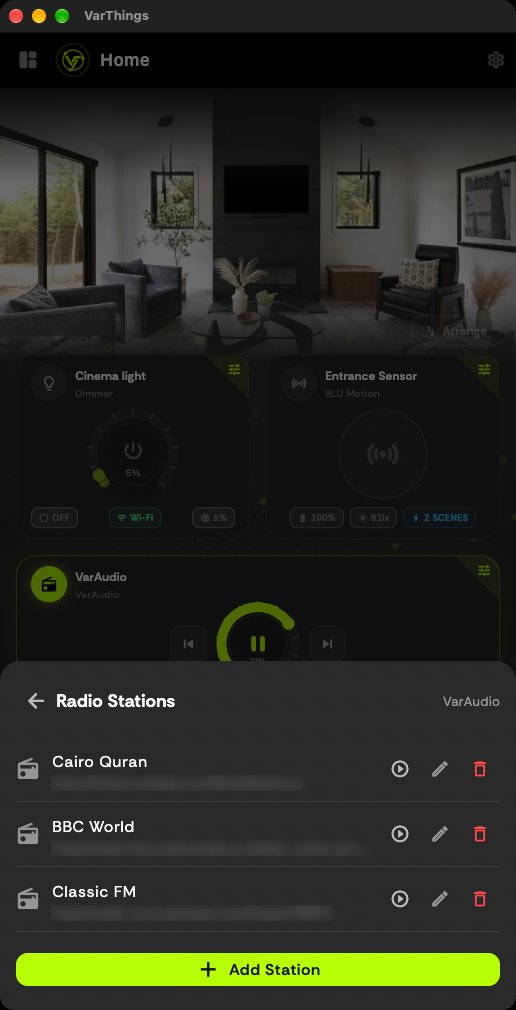
  1. Open the VarAudio card settings to add, rename and reorder radio stations.
  2. Switch between Radio and Music (SD card) mode from the card.
  3. In Azan, choose your city, calculation method and adhan. VarAudio then plays it on time by itself.
Radio stations manager

Organize

Group devices by room

Areas keep a bigger home tidy

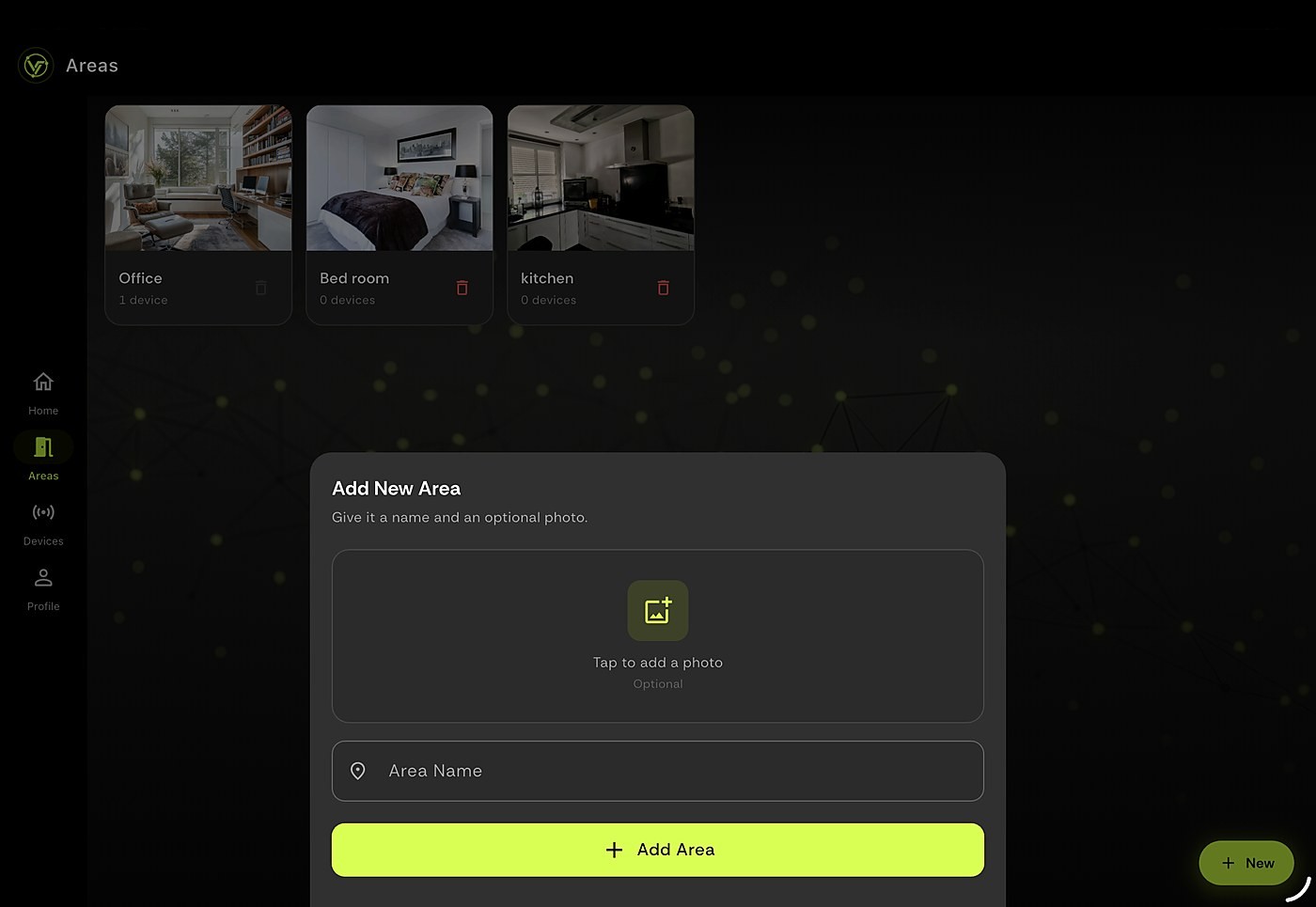
  1. Open Areas and create rooms such as Office or Kitchen.
  2. Give each room a cover photo and move your devices into it.
Areas manager

Maintain

Keep firmware up to date

Updates arrive over the air, no cables

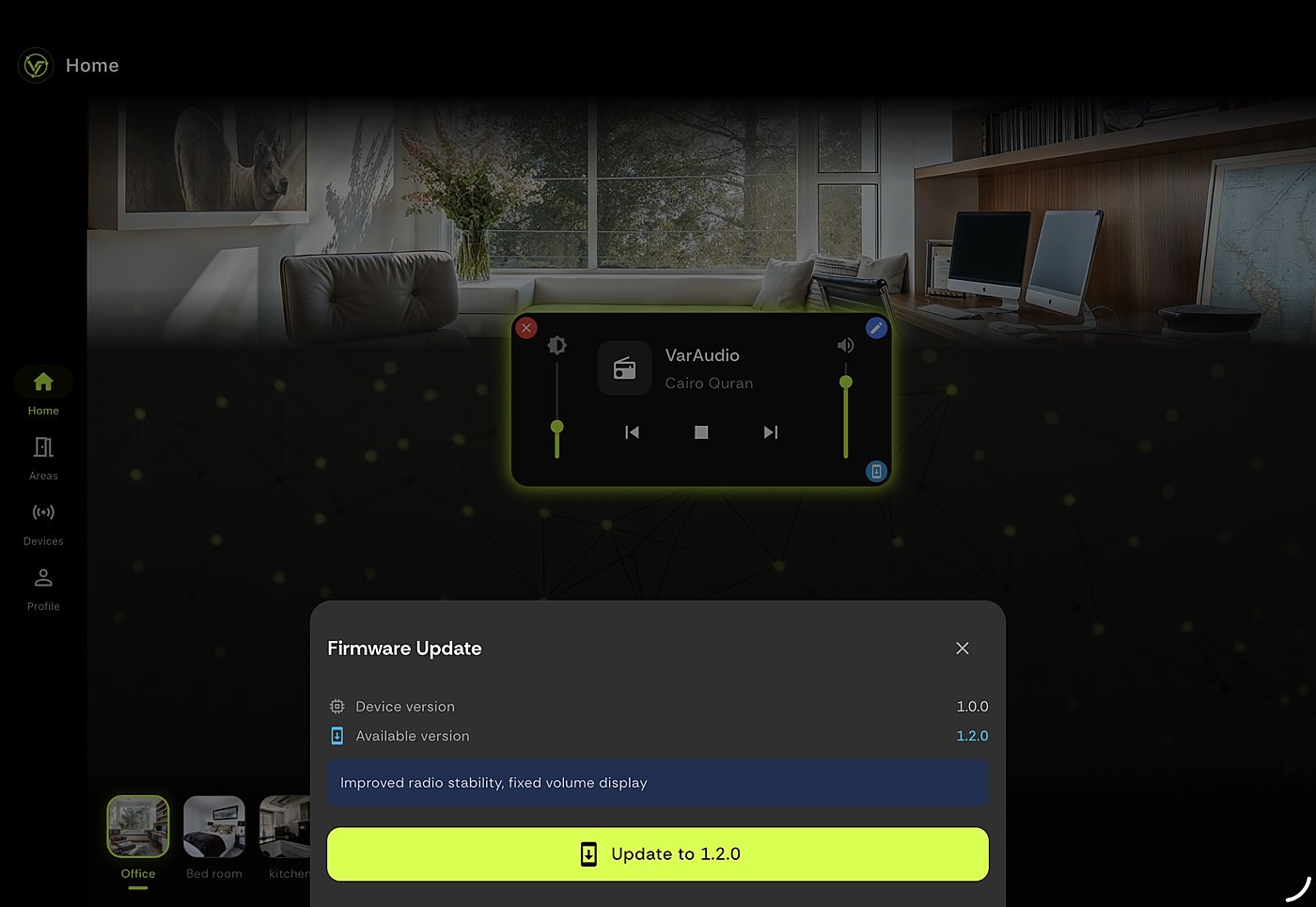
  1. On the VarAudio card tap the update button. The app checks for a new version.
  2. Tap to download and install. The screen shows a progress ring and Do not power off.
  3. VarAudio restarts by itself when it is done.
Firmware update screen

Troubleshooting

The app cannot find VarAudio over Bluetooth

Make sure it is powered and Bluetooth is on. On Android, Location must be on too. Move closer and try again. You can also connect manually from your phone’s Wi-Fi settings to the device’s own network.

“Configuration failed” after typing Wi-Fi

Check the network name and password. VarAudio uses 2.4 GHz Wi-Fi, so a 5 GHz-only network will not work.

Setup worked but the device is not listed

Run Start Scanning with your phone on the same Wi-Fi, or use Add device manually with its IP address.

Lost connection while updating

Keep VarAudio powered and the app open, then try the update again. The device keeps what it received for a few minutes.

Need to change the Wi-Fi

Repeat step 4. Add the device again and enter the new network.

Still stuck? Write to support@varthings.com.
Ready?

Download
VarThings.

Free for iOS and Android.